Adjust RGB , instantly, Online
In 1 Click, Adjust RGB , by color curve , for a better picture
Adjust RGB (Red,Green,Blue) variation
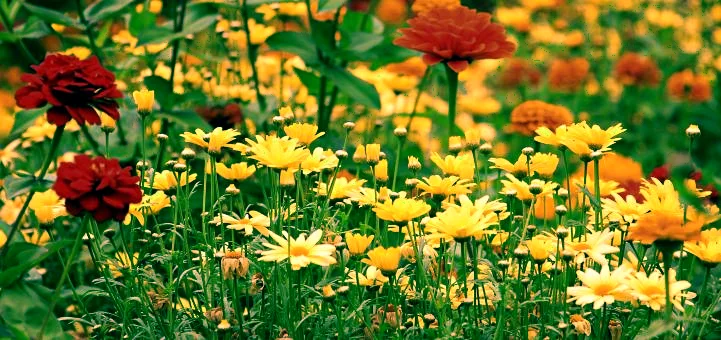
Adjust Red
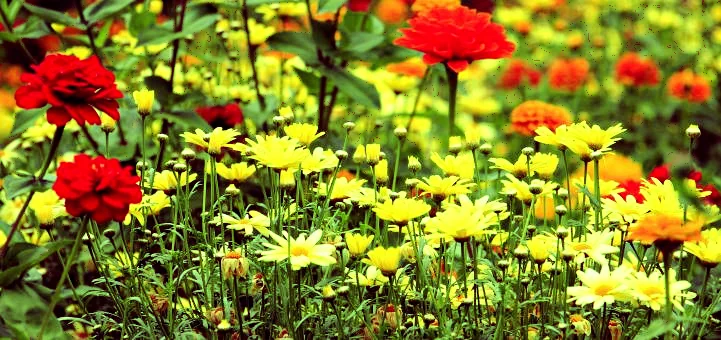
Adjust Green
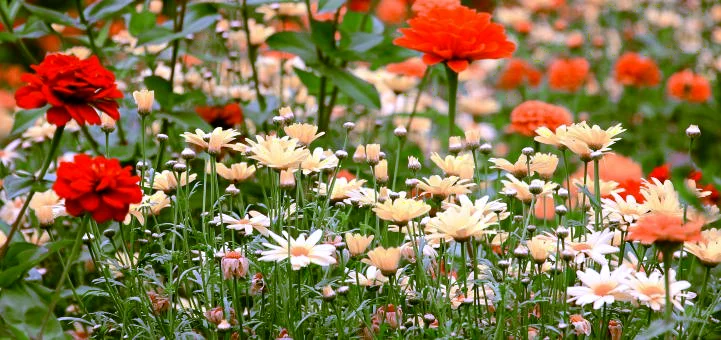
Adjust Blue
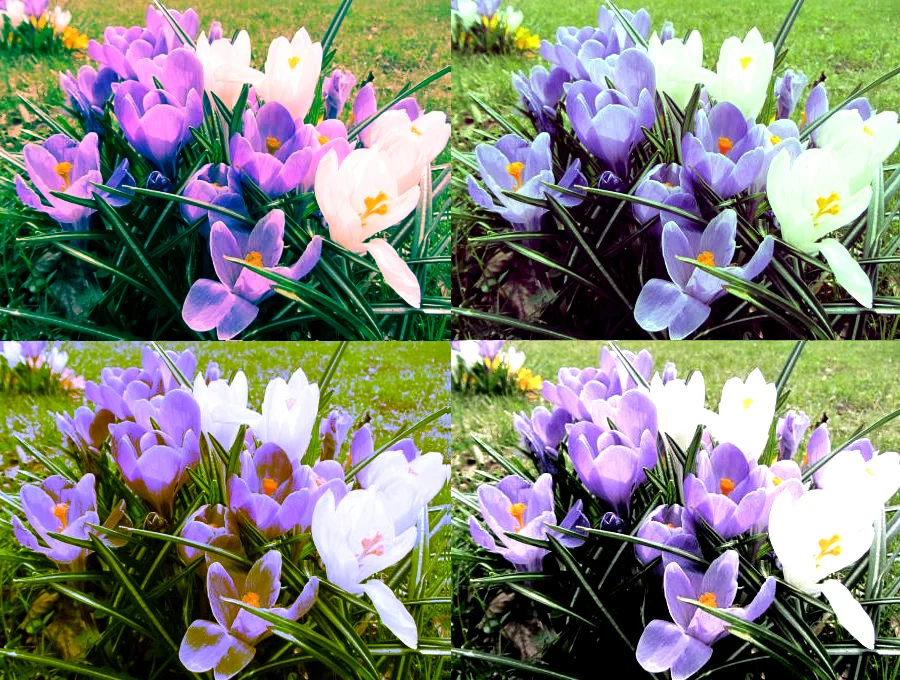
Change Saturation and Light
Adjust Saturation, Light, Darkness, Contrast
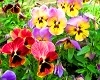
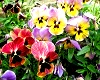
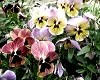
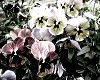
Beautiful Gray Shades Pictures
Replace Colors Easily
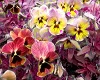
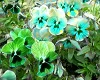
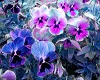
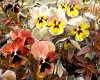
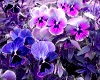
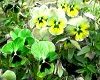
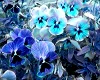
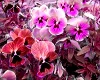
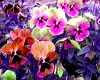
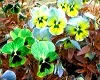
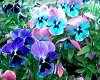
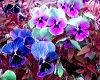
Increase or Reduce RGB Primary Colors, Retaining Color Balance
Increase R/G/B
Decrease R/G/B
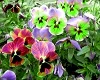
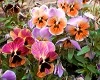
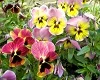
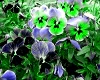
Advanced Color Adjustments: Adjust colors by curves
Change Saturation and Light
Adjust Saturation, Light, Darkness, Contrast
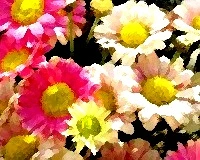
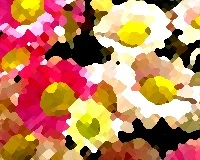
Beautiful Gray Shades Pictures

Adjust RGB (Red/Green/Blue), for a high contrast picture
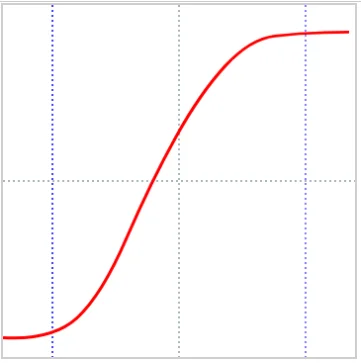
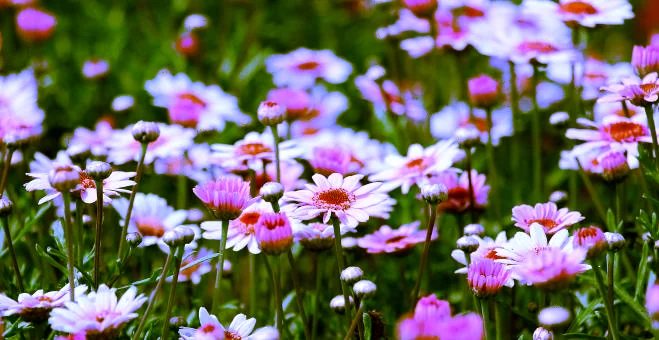
Red/Green/Blue (RGB) are additive primary colors , used to create colors on digital screens by combining these lights (0–255). It is the standard color system for digital screens (monitors, televisions, digital cameras, and scanners) producing white when all colors are at full intensity. CMY stands for Cyan, Magenta, and Yellow, a subtractive color model (subtracting light) used in color printing, where mixing all three produces black (dark tones). This online system helps you to manipulate image colors well, by easily adjusting Red/Green/Blue, and black-white individually. To increase or decrease rgb (red/green/blue), you should adjust the curve to a smooth shape, and it is important that you improve the color contrast, by increasing dark colors and light colors. If you set the left part of the curve below the x-axis, the corresponding y-values will be minus, and thus the light of dark colors will be further reduced. vise-versa, to increase light colors, keep the right part of the curve above the x-axis, for plus values, which will increase light for light and high color pixels. Also note that, if you increase lightness for low light areas (left part of curve), it will produce a rather dull or low-contrast picture. And similarly, if you reduce light of high color areas ( right side of curve) , this also could produce a rather , low contrast , less atractive picture. There fore, these adjustments must be done with gradual change and test.
Try to make the curve as smooth as possible ( less sharp) , to make sure the color transitions are smooth (gradual), and realistic.
Adjust RGB (Red/Green/Blue) to improve color variation
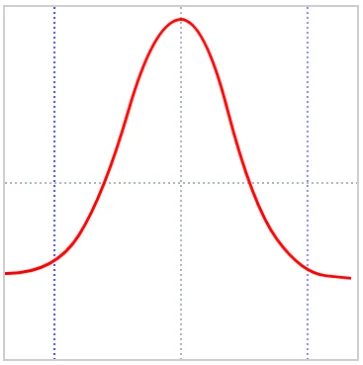
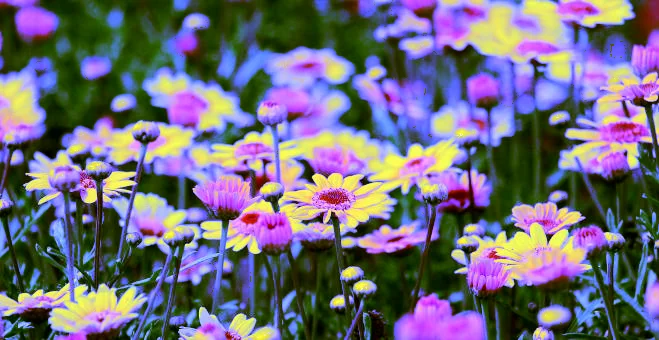
Red/Green/Blue (RGB) are additive primary colors , used to create colors on digital screens by combining these lights (0–255). It is the standard color system for digital screens (monitors, televisions, digital cameras, and scanners) producing white when all colors are at full intensity. This online system helps you to manipulate image colors well, by easily adjusting Red/Green/Blue, and black-white individually. For a beautiful, High contrast picture , it is important that you keep the left part of the curve below the x-axis, to reduce light of dark colors. On the right or center part of the curve , To increase light, raise the curve above the x-axis, at the center, or right, to increase light, for a colorful picture. The bell shaped curve will improve color variations ( more hues) , for a better picture or special effects. These adjustments must be done with gradual change and test.
Try to make the curve as smooth as possible ( less sharp) , to make sure the color transitions are smooth (gradual), and realistic.